
How does chart duplication occur?
Chart duplication can occur for a few reasons:- a duplicate chart was accidentally created by a member of your practice
- a duplicate chart was created due to an integration
- a duplicate chart was created from a Letter from another Elation EHR provider via the Letters & Referrals feature
Why should I merge duplicate charts?
The patient’s chart is the source of truth for patient information. Having multiple patient charts means the patient’s information is dispersed amongst more than one source of data which may affect your ability to make accurate healthcare recommendations. Duplicate charts should always be merged so that each patient only has one chart in your EHR.Identifying duplicate charts
Most duplicate charts will have a pink banner at the top of the patient’s chart to signify the chart might be a duplicate. Any chart that is created by an integration or Elation feature will automatically have this pink banner.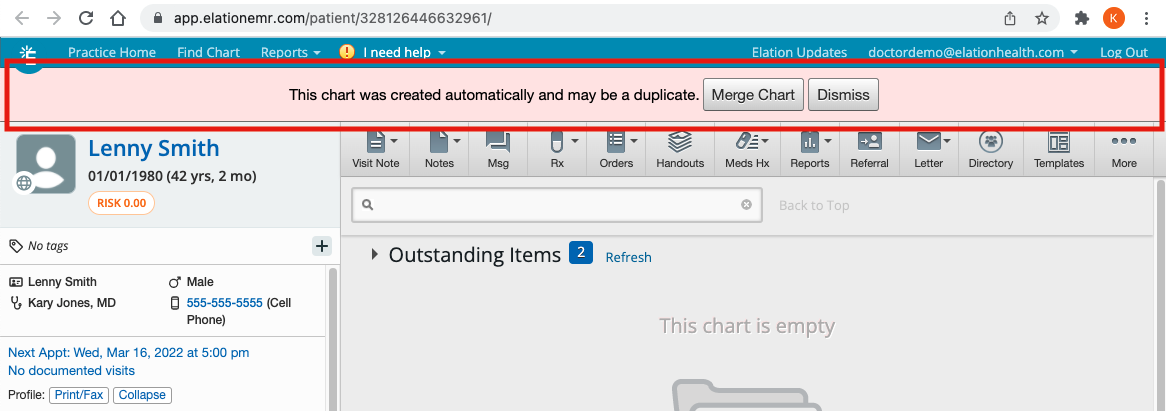
- Click Merge Chart to merge the duplicate version of the chart into the original chart
- Click Dismiss if the chart is not a duplicate chart to dismiss the banner.
Merging duplicate charts
To merge duplicate patient charts, take the following steps:- Go to the duplicate patient chart you would like removed (we will call this the Losing Chart), click on the patient’s name to access the patient’s demographics and click on the Merge Chart button under Notes & Chart Management(OR click the Merge Chart button in the pink banner)

- Enter in the name of the original patient chart you want the duplicate chart to merge into (we will call this the Winning Chart), and click Merge Chart.
-
Everything that has been signed off in the Losing Chart , except for the demographics information, will be merged onto the Winning Chart . Please make sure important demographics details are updated and necessary chart items are signed off in the Winning Chart before you merge the duplicate charts.

Frequently Asked Questions (FAQ)
I see a duplicate chart but I do not see the pink banner. What happened?
Any chart that is created by an integration or Elation feature will automatically have a pink banner. If you do not see a pink banner at the top of the duplicate chart, it means:- someone in your practice dismissed the pink banner
- the duplicate chart was not created by an integration or Elation feature
I do not see the “Merge Chart” banner. How do I merge charts?
Follow the merge instructions t o merge the duplicate charts from the patient demographics window.I accidentally merged two charts that belong to two different patients. What should I do?
You can unmerge charts yourself using the User Activity Log:- Go to Reports > User Activity Log
- Filter by the patient or by the “Merge” action to find the merge event
- Click the Restore button next to the merge action to unmerge the charts
The User Activity Log only contains data from January 1, 2023 to present. If the merge occurred before this date, or if you need immediate assistance, click the I need help > Contact Elation Support button and check the Urgent box.