
What is the User Activity Log?
The User Activity Log allows Admin Level Users to see and monitor actions performed by all users in the EHR from January 1, 2023 to present. Non-Admin Level Users will be able to see and monitor their own activity. The activity in the User Activity Log includes, but is not limited to:- Accessing, deleting or merging patient charts
- Creating certain content in the patient’s demographics including:
- Address
- Phone
- Contact preference
- Insurance (including deleting)
- Creating certain content in the Clinical Profile including:
- Patient’s profile picture
- Patient allergies
- Patient drug intolerances
- Problems
- Medical History
- Family history
- Patient’s provider list
- Immunization history
- Creating, deleting or printing visit notes (including vitals and certain bullets)
- Creating and updating bills (including CPT Codes and Diagnosis Codes)
- Creating, signing and deleting orders
- Deleting discontinued medications
- Deleting medication history reports
- Approving and denying prescription refill requests
- Creating and deleting letters
- Creating, signing, acknowledging, and deleting Office Message threads
- Creating and deleting non-visit notes
- Reassigning and deleting reports
- Creating and deleting appointments
What are the benefits of using the User Activity Log?
The User Activity Log provides a convenient way to review activity performed by various users within the EHR. Through the use of powerful filters, you can quickly review all actions performed for a given patient and/or by a specific user. This new functionality will simplify and expedite the process of understanding when actions were performed and by whom and allow you to access the relevant patient chart to take next steps if needed. You will also be able to undo certain actions such as deleting certain records or merging charts. Use cases for the User Activity Log include:- Which chart did I update?
- In the busyness of a typical day, sometimes someone in the practice makes a change to a chart only to forget which chart they modified. This can make it difficult to continue making necessary changes, or to revert changes that have been made by mistake. With the User Activity Log, you can easily see all the charts recently viewed.
- Who has viewed or taken action on a particular chart?
- Sometimes certain charts are sensitive and your practice may want to ensure only authorized practice users are accessing the chart. With the User Activity Log, you can search for a specific patient and view all the users who have viewed or taken action on that patient’s chart.
- What actions has this user performed?
- In some scenarios, a practice may have concerns that a particular user might be attempting to view or do more than they should. With the User Activity Log, you can search for a particular practice user and review all the actions performed by that user across charts to ensure it is aligned with what they are authorized to do.
- How do I restore a deleted patient chart?
- You can use the User Activity Log to restore a patient chart; whether it was deleted or merged away.
Using the User Activity Log
Accessing the User Activity Log
To access the User Activity Log, go to Reports -> User Activity Log.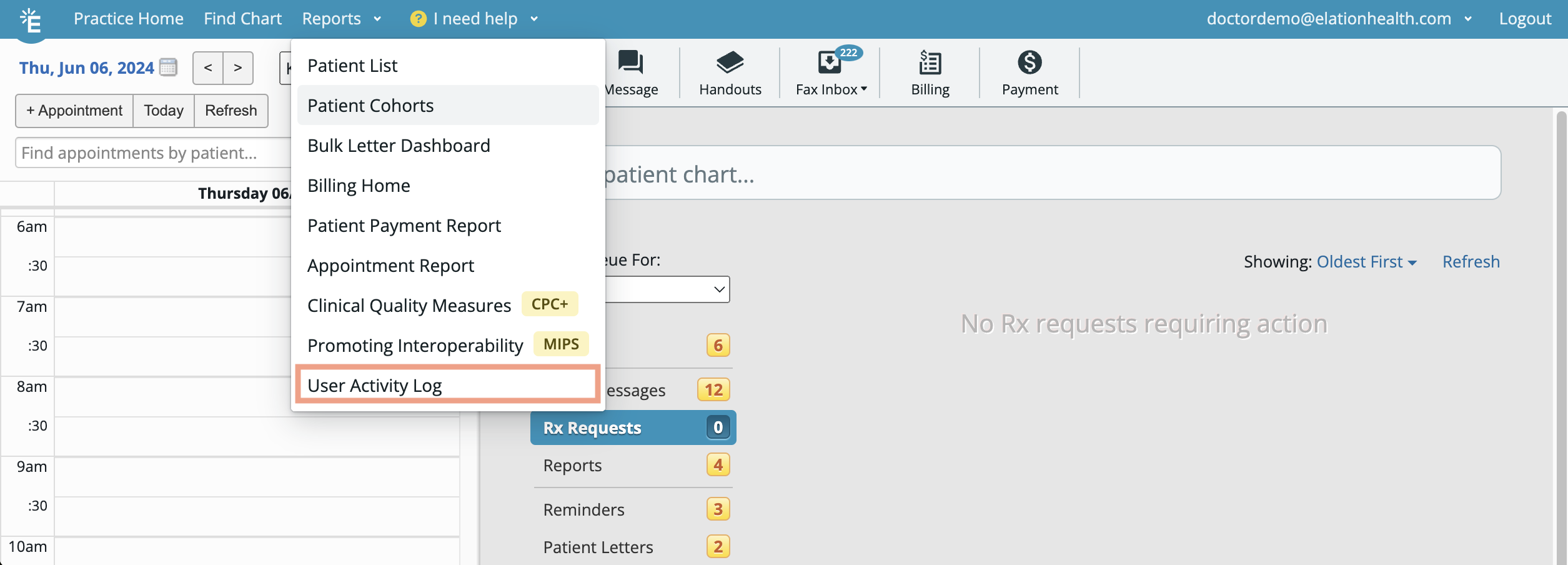
Viewing data in the User Activity Log
By default, we will list user activity from January 1, 2023 to present. The activity log will list up to 20 activities per page. Use the page navigation buttons to move between different pages of the activity log.- Admin Level Users can see and monitor actions performed by all users in the Practice.
- Non-Admin Level Users can only see and monitor their own activity.
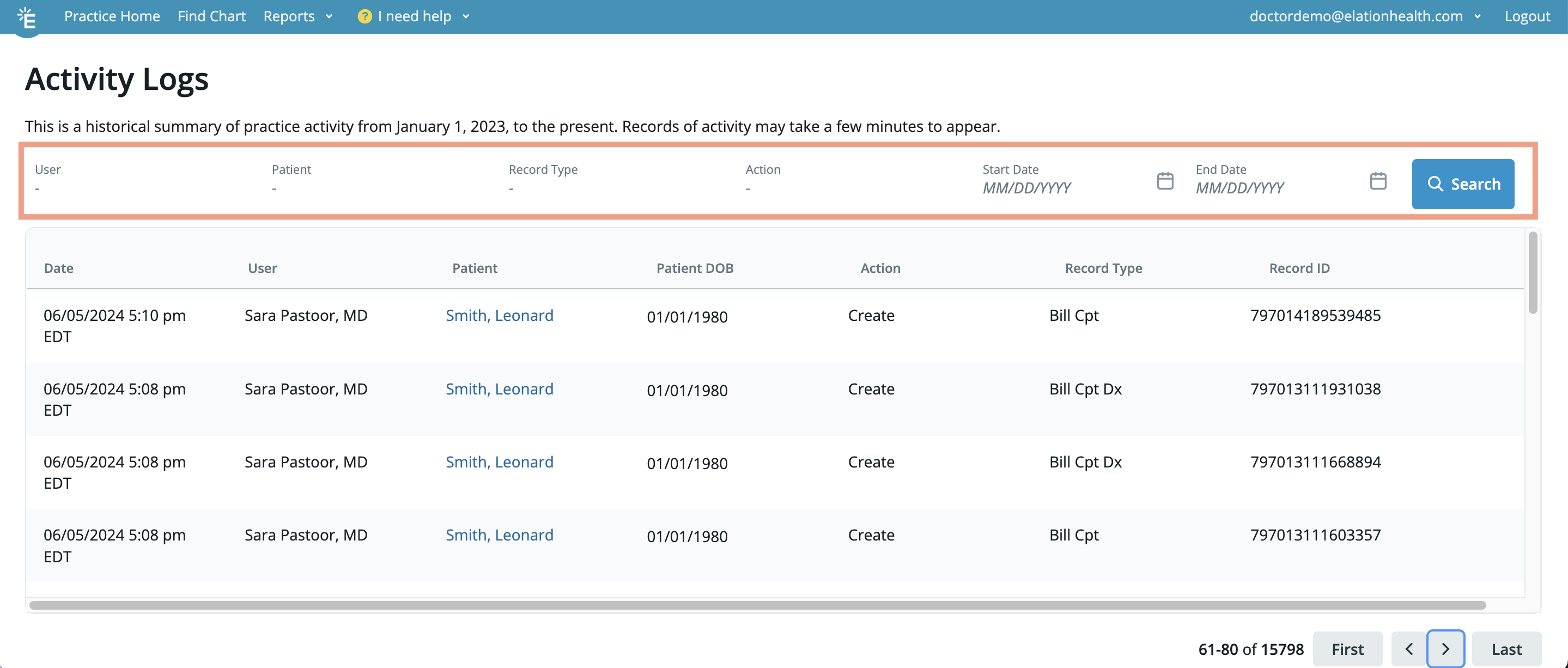
User Activity Log Filters
| Filter | Use Case |
|---|---|
| User | Select the User in your practice you wish to monitor.
|
| Patient | Enter the Patient ID into this filter if you want to look at the activity log for a specific patient.
To locate a patient’s Patient ID:
|
| Record Type | Select the type of record you wish to look at. You can select multiple records at a time.
|
| Action | Select the type of action you wish to look at.
|
| Start Date | Select the date you wish to start filtering the activity by. The date cannot be before January 1, 2023. |
| End Date | Select the date you wish to stop filtering the activity by. |
User Activity Log Data Columns
| Column | Description |
|---|---|
| Date | Lists the Date and Time of the activity in your practice’s timezone. |
| User | Lists the full name of the User that performed the activity.
|
| Patient | Lists the full name of the Patient tied to the activity.
|
| Patient DOB | Lists the date of birth of the Patient
|
| Action | Lists the action performed on the Patient.
|
| Record Type | Lists the type of record the action was performed on. |
| Record ID | Lists the Record ID of the record in Elation’s database.
|
| Restore (only available for certain Record Types) | Allows you to click a Restore button to restore certain deleted records. Restored records can be accessed immediately.
|