
What is the Elation Support Portal?
The Elation Support Portal is a secure, self-service portal where you can view and manage your practice’s support tickets with Elation. Instead of calling or emailing for a status update, you can log in to the portal at any time to see what is happening with your open tickets, review closed tickets, and communicate directly with the Elation Support team.Who can access the Support Portal?
The Support Portal is available to all Elation EHR users with an active account. You log in with the same credentials you use for Elation EHR — no separate registration is needed. Your portal account is created automatically the first time you log in.The Support Portal requires an active Elation EHR account. Team members who do not have their own EHR login cannot access the portal. If you need a ticket update and do not have an EHR account, communicate directly with the Elation Support Team.
What support tickets you can see
- Your tickets — you can always see support tickets you submitted or are listed as the contact on.
- Practice tickets — if you have administrative privileges, you can also see all tickets for your practice.
How to log in
- In Elation EHR, click I need help in the top navigation bar, then select View existing support cases.
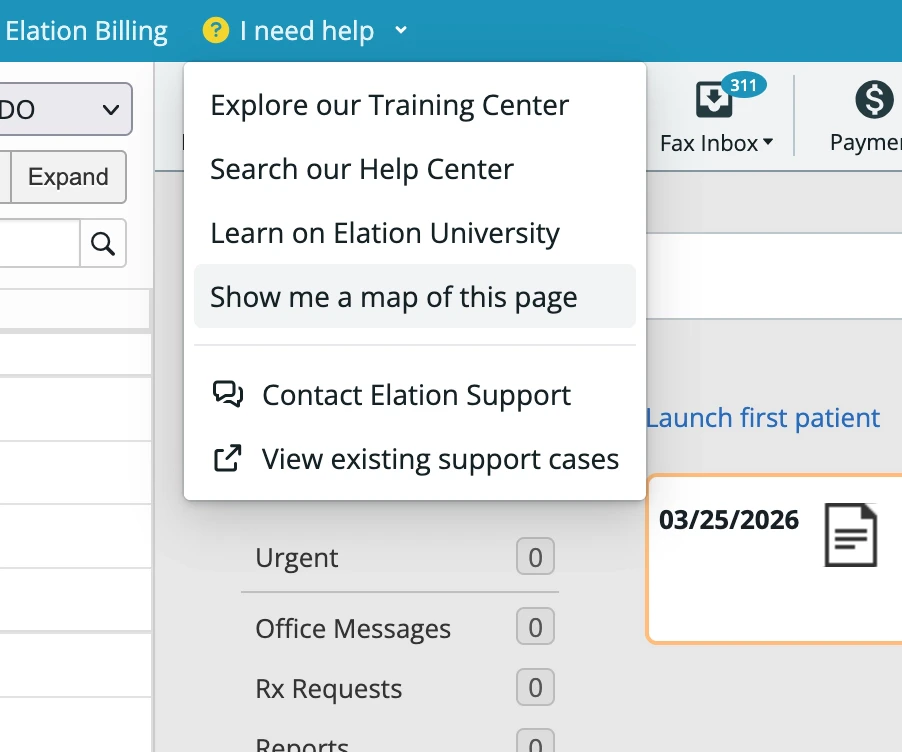
- Log in with your Elation EHR credentials.
- You are taken directly to your ticket list.
What you’ll find in the Support Portal
The portal organizes your tickets into two views:- Open tickets — active support tickets with their current status, last update time, and full message history. Tickets that need your attention are visually highlighted so you can quickly see where Elation Support is waiting on a response from you.
- Closed tickets — resolved tickets with their complete history, so you can reference past issues and resolutions at any time.
- Status and priority
- Created and last-updated timestamps
- Subject and description
- Full message and update history between you and Elation Support
What you can do in the portal
- Reply to open tickets — add information, answer questions from Elation Support, or provide additional context.
- Upload attachments — attach screenshots, files, or documents to help Elation Support investigate your issue.
- Resolve a ticket — mark a ticket as resolved when your issue is fixed.
- Reopen a closed ticket — if a resolved issue comes back, you can reopen it. Elation creates a new ticket linked to the original so the full history is preserved.